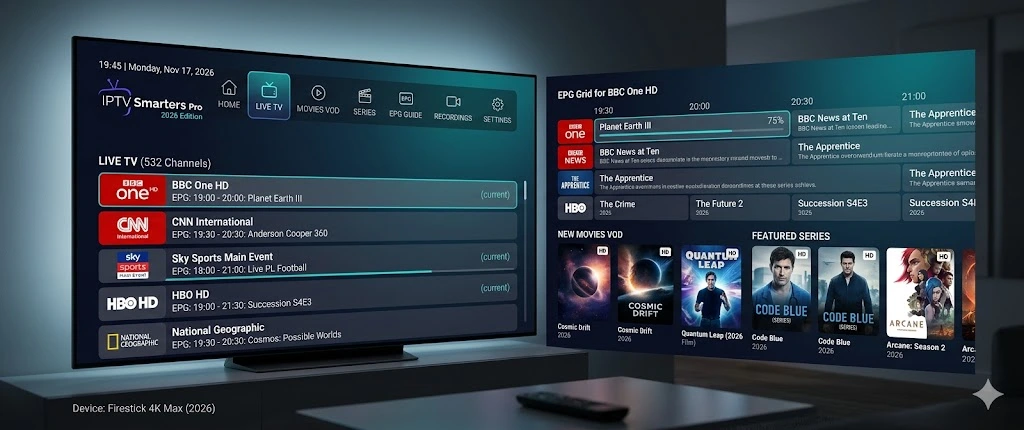
What is IPTV Smarters Pro?
IPTV Smarters Pro is a free IPTV player application for Android, Amazon Firestick, iOS, Samsung Smart TV (Tizen), and PC. It plays live TV channels, VOD movies, TV series, and catch-up content from any IPTV subscription using M3U playlists or Xtream Codes API credentials. IPTV Smarters Pro is developed by WHMCS SMARTERS and is available on the Google Play Store, Amazon App Store, and as a direct APK download.
IPTV Smarters Pro is one of the most widely used IPTV players in the world, particularly popular among US cord-cutters looking for a universal player that works across all their devices. Unlike TiviMate, which is Android/Firestick-only, IPTV Smarters Pro runs natively on Samsung Smart TVs, iPhones, iPads, and via emulator on Windows PC — making it the more versatile cross-platform IPTV solution.
The app itself is free — there is no IPTV Smarters Pro subscription fee for the player. What you pay for is your IPTV service subscription from a provider, which gives you the M3U URL or Xtream Codes credentials you enter into IPTV Smarters Pro to access the channels.
IPTV Smarters vs IPTV Smarters Pro vs IPTV Smarters Plus — what's the difference?
These three names cause significant confusion online. Here's a clear breakdown:
| App Name | Platforms | Key Features | Price |
|---|---|---|---|
| IPTV Smarters Player | Android, iOS | Basic IPTV playback, M3U & Xtream Codes, EPG | Free |
| IPTV Smarters Pro | Android, Firestick, iOS, Samsung TV, PC | Multi-user profiles, better EPG, adult PIN lock, external player, VOD/Series | Free |
| IPTV Smarters Plus (WatchSmart) |
Android, iOS | Redesigned modern UI, multi-screen, improved VOD browser | Free |
| Smarters Player Lite | Android | Lightweight version for lower-end devices | Free |
All versions are free. IPTV Smarters Pro is the most full-featured and most widely compatible version — it is the one this guide focuses on, and the one recommended for Firestick, Samsung Smart TV, and PC users.
50,000+ Live Channels
All US networks, sports, news, international channels. HD, FHD, and 4K streams depending on your provider.
200,000+ Movies & Series
Full VOD library browsable directly inside IPTV Smarters Pro with cover art, descriptions, and categories.
7-Day Catch-Up TV
Watch programs you missed with TV archive (catch-up) — available when your IPTV provider supports it via Xtream Codes.
How to Install IPTV Smarters Pro on Firestick
IPTV Smarters Pro is available on the Amazon App Store for direct install on Firestick. Search "IPTV Smarters Pro" in the App Store. If it's not found, use the Downloader app with the APK link from downloadercodes.com/iptv-players/iptv-smarters-pro/. Total install time: under 7 minutes.
✅ Method 1 (Easiest): Amazon App Store search — no sideloading needed on most Firestick models | ✅ Method 2: Downloader APK sideload — works on all Firestick models, gets the latest version
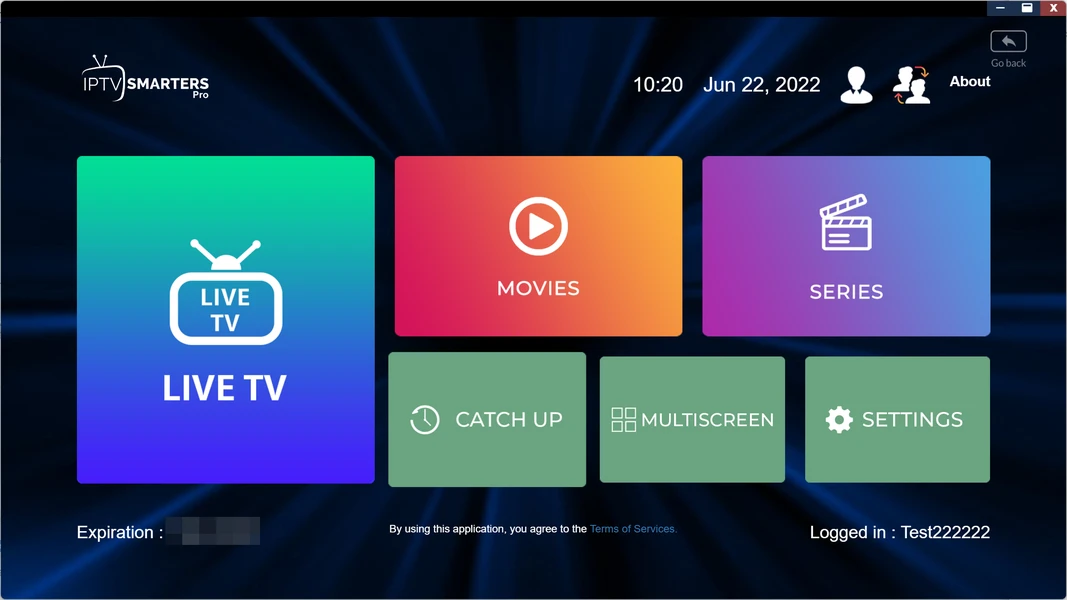
Method A — Install from Amazon App Store (Recommended)
- Press the Home button on your Firestick remote
- Go to Find → Search and type "IPTV Smarters Pro"
- Select the app by WHMCS SMARTERS and tap Get / Download
- Once installed, open IPTV Smarters Pro from your apps list
- Follow the login and setup guide below to add your IPTV subscription
Method B — Sideload via Downloader (APK)
Enable Developer Options on Firestick
Go to Settings → My Fire TV → Developer Options. Turn on Install Unknown Apps. Once the Downloader app is installed (Step 2), return here and enable its toggle.
Install the Downloader app
From the Firestick home screen, go to Find → Search → type "Downloader". Install the Downloader app by AFTVnews — it's free on the Amazon App Store. This app lets you load any APK from a URL or short code.
Get the IPTV Smarters Pro download link or code
Visit downloadercodes.com/iptv-players/iptv-smarters-pro/ on your phone or computer to get the current download code or direct APK URL for IPTV Smarters Pro. Use this in the Downloader app on your Firestick.
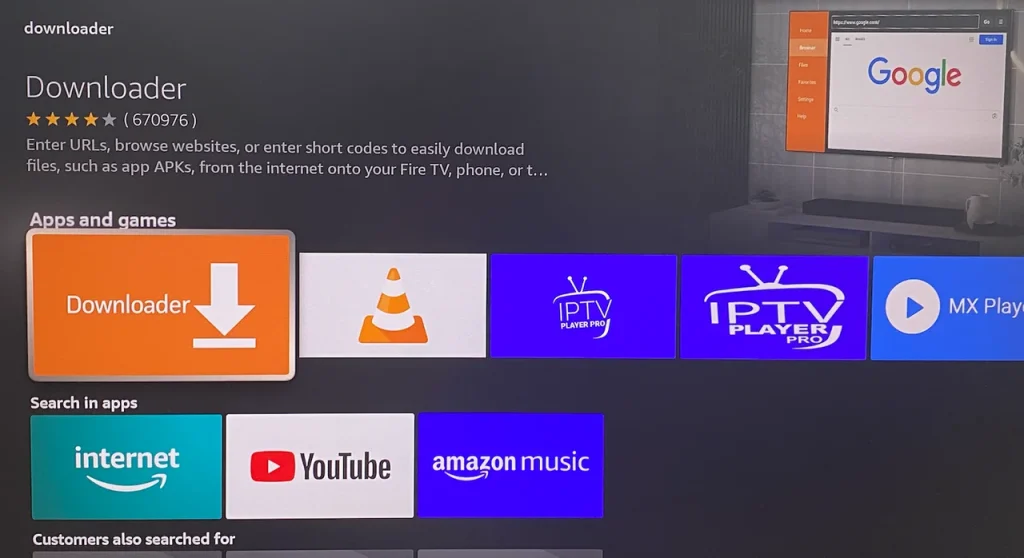
Download and install the IPTV Smarters Pro APK
Open Downloader on your Firestick. Enter the URL or code from Step 3 and tap Go. Downloader will download the IPTV Smarters Pro APK. When prompted, tap Install, then Done (or Open to launch immediately).
Open IPTV Smarters Pro and add your playlist
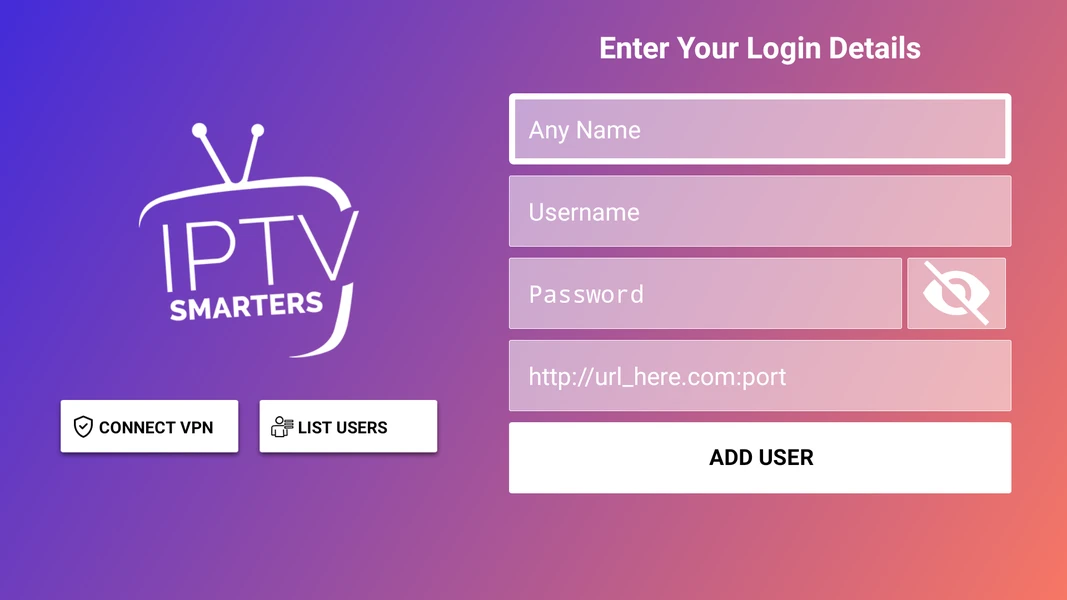
Launch IPTV Smarters Pro. On the welcome screen, tap Add User. Enter a username for this profile, then choose your login method — Xtream Codes API or M3U URL. Enter your credentials from your IPTV subscription and tap Add User. Your full channel list loads automatically.
IPTV Smarters firestick free codes — what are they?
The term "IPTV Smarters firestick free codes" appears frequently in searches and refers to Downloader app numeric codes that load the IPTV Smarters Pro APK — not free IPTV channel credentials. These codes are simply short shortcuts in the Downloader app that point to the APK download URL. Get current, working codes at downloadercodes.com/iptv-players/iptv-smarters-pro/.
IPTV Smarters Pro on Samsung Smart TV
IPTV Smarters Pro is available on Samsung Smart TVs running Tizen OS (2017 and newer models). Search for "IPTV Smarters" in the Samsung Smart Hub App Store and install it directly — no sideloading required. After installation, add your IPTV subscription credentials to watch 50,000+ channels directly on your Samsung TV.
IPTV Smarters Pro on Samsung Smart TV — available directly in the Samsung Tizen App Store
How to download IPTV Smarters Pro on Samsung Smart TV
- Press the Home button on your Samsung Smart TV remote to open Smart Hub
- Navigate to the Apps section at the top of the Smart Hub screen
- In the App Store search bar, type "IPTV Smarters" or "IPTV Smarters Pro"
- Find the app by WHMCS SMARTERS in the search results — it has a dark TV icon
- Select the app and tap Download / Install — the app is completely free
- Once installed, press Open to launch IPTV Smarters Pro on your Samsung TV
- On the main screen, tap Add User and enter your IPTV subscription credentials
⚠️ Not finding IPTV Smarters Pro on your Samsung? Availability varies by region and TV model year. If the app doesn't appear in the Samsung App Store, try searching for "IPTV Smarters Player" or "Smarters Player". Older Samsung TVs (pre-2017 Tizen) may not support the app — in that case, connect a Firestick to an HDMI port on your Samsung TV as an alternative.
How to use IPTV Smarters Pro on Samsung TV
Navigating IPTV Smarters Pro on Samsung TV using a remote is slightly different from the phone app. Once your IPTV subscription is loaded:
- Live TV: Navigate to the Live TV tab — channels are organized into groups (USA, Sports, News, International). Use the directional pad to browse channels and the Select/OK button to play.
- EPG Guide: Press the EPG or Guide button within IPTV Smarters to see the 7-day program guide. Scroll horizontally to see upcoming shows, vertically to browse channels.
- VOD & Series: Use the VOD and Series tabs to browse movies and TV shows. Use the search function to find specific titles.
- Catch-Up TV: In the Live TV section, navigate back in the EPG to watch shows from the past 7 days (requires Xtream Codes and catch-up support from your IPTV provider).
- Switching profiles: If you have multiple IPTV playlists, tap your username at the top to switch between them.
✅ Tip: For the best experience on Samsung TV, use Xtream Codes rather than M3U URL — it loads faster, enables catch-up TV, and gives IPTV Smarters Pro direct access to your VOD library with cover art.
IPTV Smarters Pro on PC (Windows & Mac)
There is no official native Windows or Mac version of IPTV Smarters Pro. To run IPTV Smarters Pro on PC, you use an Android emulator such as BlueStacks or LDPlayer — install the emulator, then install IPTV Smarters Pro from Google Play inside it. A direct Windows APK installer may also be available at downloadercodes.com/iptv-players/iptv-smarters-pro/.
Method 1: BlueStacks Android Emulator (Recommended for PC)
- Download and install BlueStacks from bluestacks.com — it's a free Android emulator for Windows and Mac
- Open BlueStacks and sign in with your Google account
- Open the Google Play Store inside BlueStacks
- Search for "IPTV Smarters Pro" and install it
- Open IPTV Smarters Pro in BlueStacks → Add User → enter your IPTV subscription M3U URL or Xtream Codes
- Watch all your live channels and VOD content in a full-screen window on your PC
Method 2: LDPlayer (Alternative Emulator)
LDPlayer is another free Android emulator that works well for IPTV Smarters Pro on Windows. It tends to be lighter than BlueStacks on lower-spec PCs. Install LDPlayer, use its built-in Google Play (or the APK install option), then follow the same steps as above to set up IPTV Smarters Pro.
💡 IPTV Smarters Pro PC — Hardware Requirements: At minimum, 4 GB RAM and a dual-core CPU. For smooth 1080p IPTV streaming in BlueStacks: 8 GB RAM and a dedicated GPU recommended. Enable hardware acceleration in BlueStacks settings for best streaming performance.
Alternative IPTV players for PC
If running an emulator feels heavy for your system, consider these native PC IPTV players: VLC Media Player (open any M3U URL via Media → Open Network Stream) or Kodi with the IPTV Simple Client add-on. These are native desktop apps that can play your IPTV M3U URL without an emulator — though they lack the polished IPTV Smarters interface.
IPTV Smarters Pro on Android & iPhone
Android phones, tablets & Android TV boxes
On Android, installing IPTV Smarters Pro is the simplest of all devices. Open the Google Play Store, search for "IPTV Smarters Pro", and install the app by WHMCS SMARTERS. It's completely free. Alternatively, download the latest APK directly from downloadercodes.com/iptv-players/iptv-smarters-pro/ to get the most recent version.
IPTV Smarters Pro also works on Android TV boxes (Nvidia Shield, Xiaomi Mi Box, Mecool) and Chromecast with Google TV. These Android TV devices support the full IPTV Smarters Pro interface optimized for TV navigation.
iPhone & iPad (iOS)
IPTV Smarters Pro is available on the Apple App Store for iPhone and iPad. Search for "IPTV Smarters Pro" in the App Store and install it (free). The iOS version supports M3U playlists and Xtream Codes, EPG guide, VOD, and series — feature parity with Android on core functionality. Note: some advanced features like external player support may be limited on iOS due to Apple's restrictions.
✅ IPTV Smarters Pro is one of the few IPTV players that works natively on both Android and iOS — if your household uses a mix of Android phones, iPhones, and a Firestick, IPTV Smarters Pro is an ideal unified solution.
IPTV Smarters Pro login & IPTV setup
To set up IPTV Smarters Pro with your subscription: open the app → tap Add User → choose Xtream Codes API (enter server URL, username, password) or M3U URL (paste your M3U link) → tap Add User. Your provider sends both options by email after you sign up for an IPTV subscription.
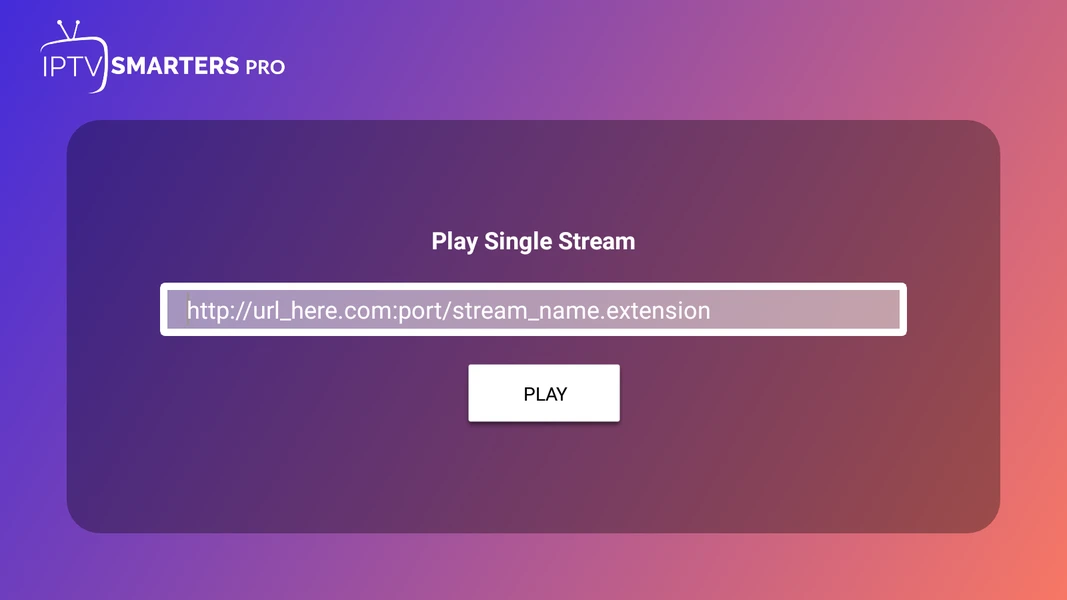
Method 1: Add IPTV subscription via Xtream Codes API (Recommended)
- Open IPTV Smarters Pro and tap the + icon or Add User
- Enter a name for this profile (e.g., "My IPTV")
- Select Login with Xtream Codes API
- Enter your Username, Password, and URL (server address) — all three are in your provider's welcome email
- Tap Add User — IPTV Smarters Pro will connect and load your channel list, VOD library, and series
Method 2: Add IPTV subscription via M3U URL
- Open IPTV Smarters Pro and tap Add User
- Enter a profile name
- Select Load Your Playlist / File / URL
- Paste your M3U URL in the URL field
- Tap Add User — your channels will load (M3U loading may take longer than Xtream Codes)
🔑 Where to get your IPTV credentials: When you buy an IPTV subscription at iptv-service-subscription.us, you receive an email within minutes containing your M3U URL, Xtream Codes username, Xtream Codes password, and server URL — copy-paste these directly into IPTV Smarters Pro.
Managing multiple IPTV playlists in IPTV Smarters Pro
IPTV Smarters Pro supports multiple user profiles — each tied to a different IPTV subscription or playlist. To switch profiles, tap your current username in the top-left corner of the main screen and select another profile. This is useful if you have a family plan with multiple device logins or want to keep personal and work subscriptions separate.
IPTV Smarters EPG — Setting Up the TV Guide
If you use Xtream Codes to connect IPTV Smarters Pro, your EPG (Electronic Program Guide) loads automatically from your provider's server — no configuration needed. For M3U URL connections, go to IPTV Smarters Pro Settings and enter an XMLTV EPG URL supplied by your provider to load the 7-day program guide.
The IPTV Smarters EPG shows a 7-day forward-looking guide for all channels that have program data. It looks and functions like a traditional cable TV guide — scroll left/right through time, up/down through channels. Clicking a program in the guide lets you:
- Watch live if the program is currently airing
- Watch catch-up if the program aired in the past 7 days and your provider supports TV archive
- Set a reminder for future programs
How to add or fix EPG in IPTV Smarters Pro
- In IPTV Smarters Pro, tap your profile username and go to Settings
- Find the EPG URL field and paste the XMLTV URL provided by your IPTV provider
- Tap Save and return to the main screen
- In the EPG tab, tap Force Refresh or Update EPG to download the latest guide data
- Allow 1-3 minutes for the EPG to fully load — it downloads data for all channels across 7 days
💡 EPG not showing? Common causes: (1) Your M3U playlist URLs don't include EPG data — ask your provider for an XMLTV EPG URL. (2) The EPG URL has expired — contact your provider for an updated one. (3) Xtream Codes connection: EPG sometimes needs a manual Force Refresh after first adding a playlist. (4) Some channels don't have EPG data — this is normal, especially for regional or niche international channels.
IPTV Smarters "Failed to Authorize" — How to Fix
The "IPTV Smarters failed to authorize" error means the app cannot authenticate your IPTV credentials — either your username/password/URL is wrong, your subscription has expired, or your IP is blocked. The fix in 90% of cases: re-check your credentials carefully (copy-paste, don't type manually) and confirm your subscription is active. Delete the user profile in IPTV Smarters and re-add it from scratch.
Check your Xtream Codes credentials for typos
The #1 cause of "failed to authorize" is a typo in the username, password, or server URL. Do not type these manually — copy the credentials from your provider's email and paste them into IPTV Smarters Pro. Check for spaces before or after the text (a leading space will always fail authorization).
Verify your IPTV subscription is active
Log in to your IPTV provider's dashboard or customer portal and confirm your subscription has not expired. An expired subscription returns a "failed to authorize" error that looks identical to a credentials error. Renew or activate your subscription →
Delete and re-add the user profile
In IPTV Smarters Pro, long-press or swipe on the user profile to delete it. Then tap Add User and re-enter all credentials fresh. Cached data from a previous failed attempt can sometimes prevent successful authorization even with correct credentials.
Check the server URL format
The Xtream Codes server URL must include the protocol and port. Correct format: http://yourserver.com:8080 or https://yourserver.com. Missing http:// or the wrong port number causes authorization failure.
Check your internet connection
A slow or intermittent connection can cause IPTV Smarters Pro to fail authorization even with correct credentials. Run a speed test — you need at least 5 Mbps for the connection itself. Try switching from Wi-Fi to wired ethernet (on Firestick, use an ethernet adapter) or vice versa.
Check for simultaneous connection limits
Most IPTV subscriptions allow 1 or 2 simultaneous connections. If you or someone else is using your subscription on another device, IPTV Smarters may fail to authorize on the additional device. Close IPTV Smarters on all other devices first, then try again.
Try a VPN or contact your provider
In rare cases, your ISP or location may be blocked by the IPTV server. Using a VPN to change your apparent location can resolve this. If the problem persists, contact your IPTV provider's support team — they can check your account status, reset your credentials, or investigate server-side issues.
IPTV Smarters Pro subscription price — what do you actually pay?
IPTV Smarters Pro the app is completely free — there is no app subscription fee or in-app purchase. The term "IPTV Smarters Pro subscription" actually refers to your IPTV service subscription from a provider — the monthly or annual plan that gives you access to the channels and content you watch through the app.
This is a common source of confusion. When people search "IPTV Smarters Pro subscription price," they are asking about the cost of the IPTV channels — not the player app. Here's a clear breakdown:
| What you're paying for | What it is | Price |
|---|---|---|
| IPTV Smarters Pro app | The player software itself — downloads, UI, playback engine | Free (no cost, ever) |
| IPTV Service Subscription | The channels, VOD, server access — what you actually watch | From $14.99/month |
| 1-Month IPTV Plan | 50,000+ channels, 200K+ VOD, 1 connection | $14.99 |
| 3-Month IPTV Plan | 50,000+ channels, better value per month | $34.99 |
| 6-Month IPTV Plan | 50,000+ channels, significant savings | $59.99 |
| 12-Month IPTV Plan | 50,000+ channels, best value — under $9/month | $99.99 |
✅ At iptv-service-subscription.us, every plan includes M3U URL + Xtream Codes credentials, so you can use your subscription in IPTV Smarters Pro on all your devices — Firestick, Samsung TV, PC, Android, iPhone — simultaneously (based on connection count in your plan).
IPTV Smarters Pro providers — best IPTV service for Smarters
Any IPTV provider that offers M3U URL or Xtream Codes API credentials will work with IPTV Smarters Pro. When evaluating an IPTV provider for use with Smarters, look for:
- Xtream Codes support — enables catch-up TV, faster channel loading, and better VOD browsing inside IPTV Smarters Pro
- EPG/XML TV data — ensures your program guide is populated in the EPG section
- Multi-connection plans — so you can watch on Smarters on multiple devices simultaneously
- Server uptime guarantee — 99.9%+ uptime means fewer buffering and authorization errors
- 24/7 support — for resolving "failed to authorize" or connectivity issues quickly
- USA channel coverage — all major networks (ABC, NBC, CBS, FOX), sports (NFL, NBA, MLB, NHL), and local channels
iptv-service-subscription.us meets all these criteria — 50,000+ channels, full Xtream Codes + M3U support, EPG included, 99.9% uptime, and 24/7 WhatsApp support.
IPTV Smarters Pro vs TiviMate — which is better?
Both are excellent IPTV players. The right choice depends on your primary device and priorities:
| Feature | IPTV Smarters Pro | TiviMate |
|---|---|---|
| Firestick | ✓ Sideload APK | ✓ Sideload APK |
| Android | ✓ Google Play | ✓ Google Play |
| iOS (iPhone/iPad) | ✓ App Store | ✗ Android only |
| Samsung Smart TV | ✓ Tizen App Store | ✗ Not available |
| PC (Windows/Mac) | ✓ via BlueStacks | ✓ via BlueStacks |
| UI Quality (TV interface) | Good | Excellent (best-in-class) |
| Multiple Playlists (free) | ✓ Free | ✗ Premium only ($4.99/yr) |
| Cost | Free | Free / $4.99/yr (Premium) |
Choose IPTV Smarters Pro if you use a Samsung Smart TV, iPhone/iPad, or need the same app across many different device types. Choose TiviMate if you are primarily on Firestick or Android TV and want the most polished, TV-native interface.
All IPTV Smarters Pro Guides
Setup guides, device walkthroughs, and troubleshooting — from the best IPTV service compatible with IPTV Smarters Pro.
What channels can you watch with IPTV Smarters?
IPTV Smarters Pro is your player — the channels come from your subscription. Here's every channel category included:
IPTV Smarters Pro — Common Questions
What is IPTV Smarters Pro?
How do I fix IPTV Smarters failed to authorize?
http:// and the correct port. (5) Test your internet connection. See full troubleshooting guide ↑